GitHub Enterprise Revision guide
This revision guide is based off the content from the MS Learn path: and content from the learning paths at the following site:
GitHub Administration
Administration levels
- Organisation
- Teams - these can and should be nested
- User
Sync your GitHub team with your identity provider.
If using AzureAD, changes in AD will be reflected in GitHub.
Organisation level administration
Organisation “owner” permissions allows you to do these activities:
- Invite and remove members from an organisation
- Place users into teams and grant “team maintaner” permissions to users
- Add or remover external collaborators
- Grant repository permission levels
- Set up organisation security
- Use customer scripts to get extra info from the repositories and apply migrations/organisation-wide changes.
GitHub Authentication
Authenitcation Options
- Username and password
- Personal Access Tokens
- SSH Keys
- Deploy Keys
- MFA
- SAML SSO (Security Assertion Markup Language)
- LDAP (Lightweight Directory Access Protocol)
Identity and Access Managament
- GitHub offers limited support for all identity providers that implement the SAML 2.0 standard.
- Use SAML SSO to allow users to sign in to all their different services with one set of credentials.
- Link the GitHub to the IdP so that each user only has access to what they are supposed to.
User Authenitcation
- SAML SSO and MFA (2FA)
- SAML SSO:
- Before enabling SSO the admin needs to connect the GitHub organisation to a supperted IdP.
- GitHub redirects a user to the IdP to authenticate when they request access to a resource within an organisation that use SAML SSO
- The IdP will redirect the member back to GitHub if succesful. They still need to log in to GitHub.
- Make sure to check the require SAML SSO authentication option in the settings after SSO has been enabled
- MFA (2FA):
- You must get users to enable the setting on their account and then also at an organisation level, click the require 2FA setting option. Only when both are done will it work properly.
- All accounts that do not use 2FA will be removed from the organisation and lose access. Includes bot accounts.
- In GitHub Enterprise there are 3 difrenent ways to implement 2FA:
- Security keys - Needs TOTP or SMS to have already been done initially. Need to configure a key in your settings, can use a physical key over USB or NFC. This is the most secure form of 2FA
- TOTP (Time-based One Time Passcode) - GitHub recommends using a cloud-based TOTP app.
- SMS - not supported by GitHub in all countries
GitHub Permissions
Repository Permissions
- Read For people who need to see the code but not interact with it
- Triage For people who proactively manage issyes amd pull requests but do not need write permissions
- Write For the standard developer and people who actively contribute to your project
- Maintain For project managers. Does not provide access to sensitive or destruvtive actions
- Admin For people who need full access to the project
Repository permissions can be be applied to organisation members, external collaborators and teams.
Team permissions
Permissions will cascade through teams that have child teams. Therefore you can apply repository permissions to a parent team that will benfit child teams of that parent. Make sure to only apply the right level of permissions to the parent team and then be more specific with child team permissions.
- Member Same set of abilites as organisation members
- Maintainer Is a team admin essentially. Abilities include: request team change parent and child teams; edit team discussions; and and remove members; give maintatner permission to other users; manage access to repositories; manage code review assignment and scheduled reminders for pull requests. An organisation owner can also prmote someone to become a maintainer.
Organisation Permissions
- Owner Can add or remove users to and from the organisation and do everything organisation members can do.
- Member Can create and manage organisation repositories and teams.
- Billing Manager Can only view and edit billing information.
You can set default permissions for all members of your organisation.
Enterprise Permissions
- Owner The ultimate admin, can do everything!
- Member Same as an organisation member.
- Billing Manager Can only view billing information and add other billing managers.
GitHub Products and Licensing
This section will run throught the different products that GitHub offers and the appropriate licensing and costs for each product.
Products
- GitHub Free - The GitHub that GitHub is most known for; anyone can create an account and use. Features include:
- Unlimited public/private repos
- 2,000 GitHub Actions/Actions automation minutes per month. Free for public repos
- 500MB of GitHub Packages/packages storage. Free for public repos
- Two-factor authenitcation
- Dependabot alerts
- GitHub Pro - Same as free hut with some updated features. Still uses personal accounts but you get the following advanced features:
- GitHub support via email
- Required pull request reviewers
- Multiple pull request reviewers
- Auto-linked references
- GitHub Pages
- Wikis
- Protected branches
- Code owners
- Repository insights graphs
- GitHub Actions limit increased to 3,000 minutes
- GitHub Packages limit increased to 2GB
- GitHub Team - Pro but with added features for teams instead of personal accounts. Added features are:
- Draft pull requests
- Team pull reques reviewers
- Scheduled reminders
- Github Enterprise - The full works! Can be hosted on-premise or in the GitHub cloud. GH Enterprise includes the following additional:
- GitHub Enterprise Support
- More security, compliance and deployment controls
- SAML SSO support
- Access provisioning with SAML or SCIM
- GitHub Connect
- Option to purchase GitHub Advanced Security
- GH Enterprise Cloud includes 50,000 GitHub Actions minutes
- GH Enterprise Cloud includes 50GB limit for GitHub Packages storage
- GH Enterpise Cloud also has a 99.9% SLA, centralize billing options and access control for GitHub Pages.
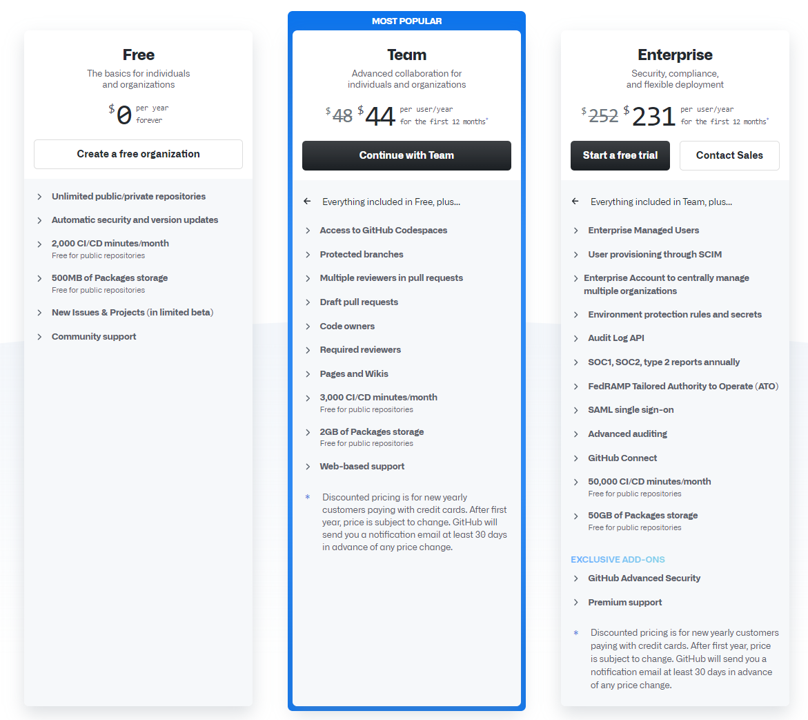
There are 3 different kinds of accounts for the GitHub products listed:
- Personal User Accounts
- Organisation Accounts
- Enterprise Accounts
GitHub Actions licensing
- When running GitHub Actions, if you use a windows runner then you are charged double what the minutes are.
- If you are using mac as your runner, you are charged 10x the number of minutes you actually consume.
- Linux is 1 to 1.
- You cannot roll over minutes each month.
GitHub Packages Licensing
- Storage used is determined by the combination of Actions artifacts and packages.
- Storage is calculated based on hourly usage for that month. For example, using 1GB a day for a week would be 1GB * 24hours * 7days then all divided by 744.
- Storage is rounded up to the nearest MB.
- Spending limits are default $0 so that you can’t overspend unless you raise that limit.
Codespaces Licensing
- Free to use whilst it is in preview. Normally would be charged for compute and storage.
- After 30 mins of inactivity, the codespace is suspended automatically.
- Compute costs are charged hourly. There will be 3 Linux instance types
- Basic (2 cores, 4GB RAM, 32GB SSD)
- Standard (4 cores, 8GB RAM, 32GB SSD)
- Premium (8 cores, 16GB RAM, 32GB SSD)
- Storage costs are monthly until you delete the codespace. Cost is a small fee per GB used per month
Managing GitHub Actions
This section will talk about how to manage GitHub Actions for the enterprise; understanding the diffrent features available for your accounts.
Enterprise Level
- Create a use policy to prevent people from using dangerous third-party actions.
- You can choose whether the policy will apply to all your ogranisations or select organisations.
- You can choose which actions are allowed: if you want select actions then you can filter actions by actions that are created by GitHub or verified marketplace actions. You can also use a wildcard to specifi=y particular actions.
Organisation Level
- Make best practices clear for users in your organisation. Provide users with the following best practices documented in a repo everyone has access to:
- Repositories for storage
- Files/folders naming conventions
- Location of shared components
- Plans fpr ongoing maintanence
- Contribution guidelines
- Create workflow templates
- You must create a workflow template in the workflow-templates directory in a piblic .github repo.
- There are 2 steps to create a template.
- Create a yml workflow file
- Create a json metadata file. This describes how the template should be presented to a user.
- The file names must be the same, except for the metadata file it must end in properties.json instead of .yml
- Users will be able to find the template you created under the workflows created by your organisation name section in the workflows tab.
Manage Runners
- There are 2 types of runners: GitHub-hosted and Self-hosted runners
- Benefits of GitHub-hosted runners:
- Automatic updates for the OS, preinstalled packages and tools, and self-hosted runner application
- Managed and maintained by GitHub
- Clean instance for every job execution
- Use free minutes on your GitHub plan, then per-minute rates.
- Benefits of Self-hosted runners:
- Automatic updates for the self-hosted runner application only.
- Can use hardware you’ve already paid for. Allows for customisable OS, software and security requirements.
- Don’t need to have a clean insance for every job
- Free to use with GitHub Actions, but you are responsible for the cost of your hardware.
- You can create self-hosted runner groups to apply rules to runners. For example, you can create a group that only containers runners that are allowed to deploy code to production and then only allow certain organisations access to this group.
- Runners are added to the defauly group when created. They can only be in one group at a time.
- You can add custom labels to self-hosted runners. For example, adding a GPU label only to runners that have the correct GPU installed.
- You must add IP allowlists in organisation settings if you use IP whitelisting and want to be able to use your self-hosted runners.
- To troubleshoot your self-hosted runners there are a few things you can do
- Check the status of the runner
- Revview the activities and automatic updates of the runner in the Runner_ files in the _diag folder
- Review the status of the runner executed in the Worker_ files in the _diag folder
### Manage Secrets
Secrets are encrypted variables that you can use to store sensitive information
- To access secrets in a workflow you need to use the secrets context before the secret name
secrets.secret_namein the workflow file - To access secrets in an action you need to make the secret an input parameter in the action.yml metadata file.
Organisation Level:
- Secret can be used by anyone in that organisation
Repository Level:
- Secret can be scoped to just the specific repo.
Maintaining a Secure GitHub Repo
Best practices
- To allow developers to report bugs privately you should establish a SECURITY.md file in the root of a repo to provide guidance to developers who identify bugs.
- Use a .gitignore file to prevent files with sensitive information from being deployed. .gitignore files inherit their settings from parent directories so try to configure a .gitignore at a high level and then cascade down into the project.
- Branch protection rules - can be used to ensure certain checks are always made when there is a deploymnent to a protected branch. Some uses include:
- Run a build to check if the code changes can be built
- Run a linter check for typos
- Run automated tests
- Add a CODEOWNERS file to your repo so that you can assign team members or entire teams to be required for any pull requests on changes to the path they are configured for.
Automated Security
- Detect and fix outdated dependancies. Can do this by viewing a repo dependancy graph.
- GitHub scans common package manifests like your package.json or requirements.txt file and then shows all your dependancies visually
- Automated dependancy alerts will alert you if you have dependancies which GitHub have detected having vulnerability risks
- Dependabot creates pull requests to update dependancies to the recommended version
- Automated code scanning can use CodeQL to query code to check for vulnerabilities
- Secret scanning woll look for secrets or credentials that have been commited to your code. By default it happens on public repos and can be configured for private repos.
GitHub Enterprise Support
Availability of Support
- GitHub Enterprise Support:
- Monday - Friday
- High-level issues initial response within 8 hours
- Urgent-level issues initial reponse within 8 hours
- GitHub Enterprise Support:
- Available every day
- High-level issues initial response within 4 hours
- Urgent-level issues initial reponse within 30 minutes
- There is support for 3 different types of problems:
- Account - user locked out of their account and cannot get access to the 2FA keys.
- Security - Threat actors hacking an account. GitHub can provide support by rolling back damage to organisation repos and settings
- Abuse - Reponding to violations of the site’s terms of service or organisational policies in GitHub social setting. E.g someone abusing someone through GitHub’s communication features. Support can help ban users.
Creating and assigning priority to tickets
- Types of priority for a ticket are:
- Urgent - tickets report critical system failure
- High - tickets report problems impacting business operations or critical bugs.
- Normal - tickets request account recovery or spam unflagging, report user login issues and non-critical bugs.
- Low - tickets ask general questions and submit requests for new features, purchases, training, or health checks.
- When creating a ticket, try to include information like the exact error message, steps to reproduce the error and any special circumstances about the discovery of the error.
Image of support plan comparison to be added here